

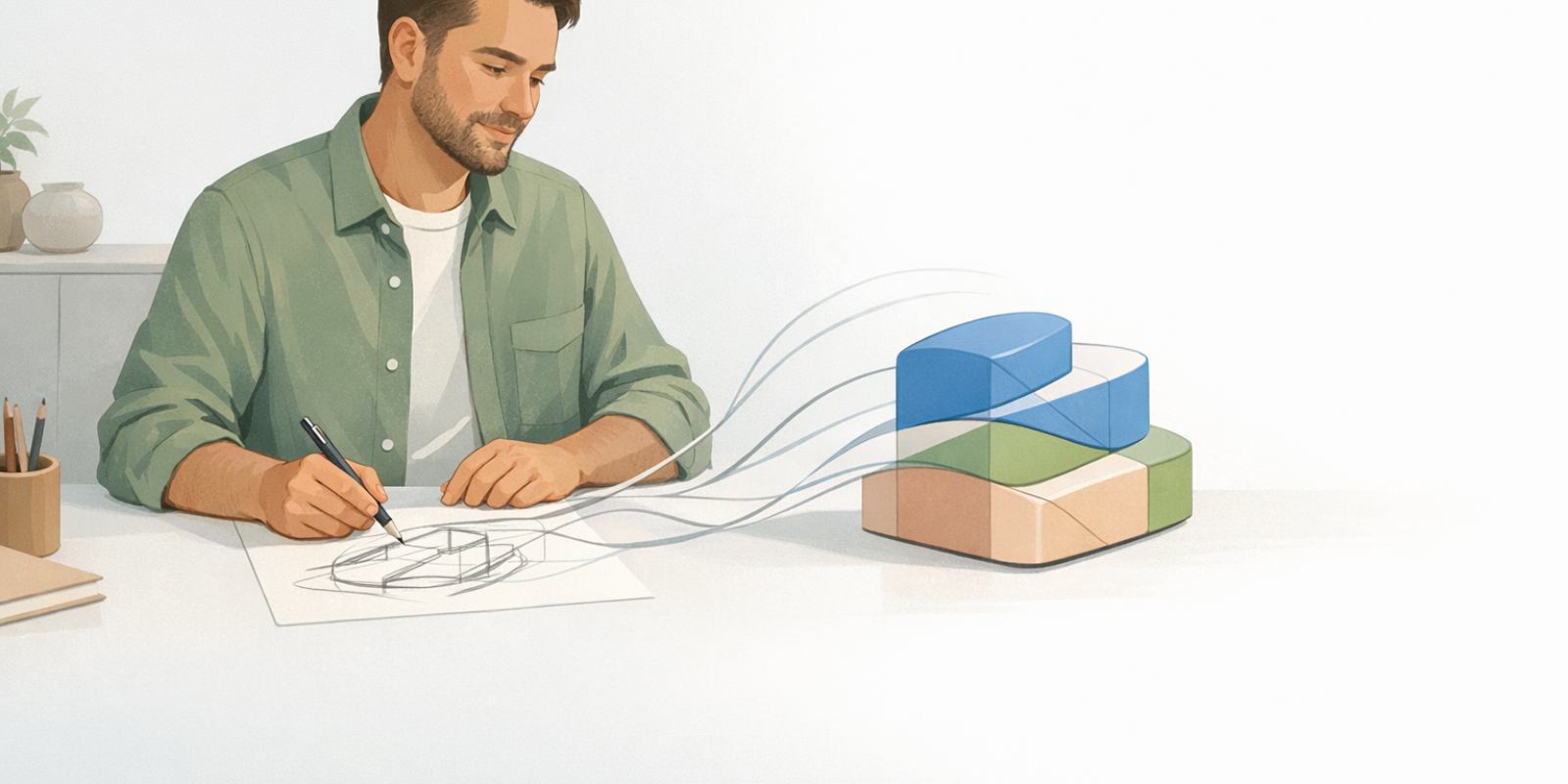
Sketch to Color in Rhino 3D: A 60‑Minute Workflow That Honors the Hand
From Hand Sketch to Colored Concept in Rhino 3D in About 60 Minutes
This is a practical, repeatable sprint for turning a hand sketch into a clean, colored Rhino concept in about an hour—without letting software override the original intent. You’ll finish with a simple massed model, a restrained palette, and clear views created with Rhino’s native tools.
Rhino is well loved because it bridges fast ideation and professional output—a smooth step from student to professional—while still respecting intuition and precision. And because Rhino’s built‑in Render command is already in your setup, you can go from shape to light to color without changing tools or adding plug‑ins.
Think of this as a traditional studio rhythm translated into digital: the sketch leads, Rhino follows. With consistent, focused sessions, skills compound quickly—and this one-hour structure is an easy cadence to return to.
What you’ll produce in this focused workflow
A scaled, imported sketch you can trust
A clean massing model that matches your lines
Just‑enough details to read the idea clearly
A restrained color/material palette in Rhino Render
Named views and lighting that show the story
We begin where good design has always begun: with the hand.
From Paper to Screen: Letting the Hand Sketch Lead Your Rhino Concept
Your sketch isn’t “pre-work.” It’s your compass—already holding proportion, emphasis, and the emotional weight of the form. The goal in Rhino is to preserve that intelligence while making it shareable and editable.
Traditional practice is embodied: pressure, speed, and hesitation all carry meaning. That isn’t nostalgia; it’s how intent becomes visible. Rhino can amplify that instinct rather than replace it. A strong concept still grows from fundamental geometry, and Rhino offers a welcoming path from sketching to structured 3D.
This “intent-first” approach is also reflected in formal learning paths. McNeel’s architecture training sequence begins from sketch, then steadily builds toward 3D clarity. If you want more guided repetitions, the Rhino Learning portal is a deep library of approachable lessons that follow a similar progression.
Honouring the sketch ritual in a digital workflow
Before touching the mouse, reread your lines—where does the silhouette tighten, where does it breathe?
Circle two or three “truths” of the sketch (for example, a crisp shoulder chamfer or a generous belly curve).
Let these truths become modeling priorities, not optional flourishes.
When the hour compresses, those truths keep your integrity intact.
Importing Your Hand Sketch into Rhino Cleanly and to Scale
A clean import is the quiet foundation of a fast workflow. When your reference is crisp, correctly scaled, and neatly organized, everything that follows feels calmer and more decisive.
Start with a scan or high‑resolution photo in even light. Crop excess paper and increase contrast so your lines are read clearly. In Rhino, set units and model tolerance first, then bring in the image as a reference and lock it on a dedicated layer. Scale it using one known dimension (overall width, a grid square, or a measured detail).
Good organization reduces rework. Many practical workflows use PictureFrame/Picture objects, layer organization, and transparency adjustments when converting hand‑drawn sketches to 3D models.
Digitising your sketch without losing its spirit
Set your units and tolerance before import; this simple habit comes up often as core workflow advice.
Use a Picture object for the sketch and lock it. Put tracing curves on their own color‑coded layer.
Trace only the silhouette and two or three governing lines. Ignore internal details for now; they’ll come later.
Lean on snaps, ortho, and typed commands—a habit that supports fast, precise work even as a beginner.
Keep a duplicate of the raw import in a “Reference” layer for safety.
When the sketch is placed honorably and precisely, your next moves are about design—not debugging.
Fast 3D Massing That Stays True to Your Lines
Now your lines get volume. In roughly 15–20 minutes, you can build a clean base model that holds the silhouette and the big proportional decisions.
Two approaches cover most concept forms: NURBS surfaces built from traced curves for defined shapes, and SubD for rounded, sculptural volumes. Rhino lets you extrude, loft, sweep, and revolve curves into surfaces, or block in softer shapes with SubD and sharpen edges where needed. Rhino’s learning materials support this progression from curves to surfaces in a steady, beginner-friendly way.
Timeboxing your base model in Rhino
5 minutes: Trace silhouette and two governing curves (top/side). Use them as rails or profiles.
10 minutes: Build primary volumes. Extrude profiles for planar parts; Loft, Sweep, or Revolve for curved bodies. If it’s soft and flowing, start as SubD and crease later where needed.
5 minutes: Join or group major parts. Check scale and proportion against the sketch—zoom out and compare the overall “read.”
Resist the urge to polish right now. Essentially, massing is you listening to the sketch in 3D—clean, quick, and confident.
Refining the Form: Just Enough Detail for a One‑Hour Concept
With the base form established, add only what clarifies intent: silhouette, light breaks, and a few functional cues. The point is readability, not completeness.
Many teaching progressions move from mass to carefully chosen accents—prioritizing clarity over total detail, a sensibility echoed in McNeel’s architecture training document. In practice, it’s also common to focus on the silhouette and the transitions that catch light first, because those do the most communicative work.
Rhino makes this stage fast: quick chamfers or fillets, plus simple Boolean operations, can suggest tactility and function without sinking time into micro-detail. Many sketch‑to‑3D workflows highlight FilletEdge, ChamferEdge, and Boolean operations during sketch‑to‑3D workflows because they change the “read” dramatically with minimal effort.
Detail with intention, not perfection
Pick three accents: one edge break, one opening, one junction. Timebox each to about three minutes.
Keep radii consistent in families (for example, all soft edges at 2.0 mm for this pass). Consistency reads as quality.
Stop as soon as the concept “reads” at arm’s length. If you can squint and understand it, you’ve done enough for this sprint.
The goal is a confident read. Save the production-level deep dive for a separate session.
Color as Story: Applying Materials and Palettes in Rhino Render
Once the form is clear, shift to mood. A limited palette—two or three materials and a small set of colors—often communicates hierarchy and character better than a busy mix at concept stage.
You can stay entirely inside Rhino. The native renderer supports materials, lights, and environments through the core Render command. Clear demonstrations show you can get strong results using only the native renderer, especially when you focus on a few smart choices rather than endless settings.
Here’s why that matters: small adjustments to material properties and lighting can elevate a concept more than adding geometry. Many practical guides emphasize improving output by fine‑tuning render settings and lights, keeping the model light and the message clear.
And because Rhino’s render preview updates progressively, you get quick feedback as it resolves to provide fast visual feedback—perfect for timeboxed work.
Choosing a limited palette that serves your concept
Use a 3‑2‑1 palette: three neutrals (body), two accents (function), one signature (brand or mood).
Assign simple materials: matte plastic for bodies, satin metal for structure, low‑gloss paint for accents. Keep roughness relatively high to reveal form over flash.
Work in colour in rendered mode while modeling—seeing hierarchy early helps you avoid over‑detailing areas that won’t be noticed.
Color is narrative, not decoration. It gently directs attention—where to look first, what feels structural, what feels touchable. Rhino’s native tools are fully capable of clear, confident 3D visualization at this stage.
Light, Views, and Atmosphere for Clear Concept Communication
Even a strong model can feel quiet without good framing. Light reveals volume, views create understanding, and atmosphere carries the emotional tone.
A simple lighting setup usually works best: an HDRI/environment for even illumination plus a single directional (or sun) light to carve edges. Rhino makes this approachable; you can get readable results quickly by adjusting environment and sun settings.
Then lock in your communication angles. Save Named Views for orthographic clarity and one or two “hero” perspectives. Many workflows recommend Named Views for consistent framing across exports and diagrams when generating views from the model.
Put simply: camera and exposure choices often do more for perceived quality than more modeling. You can see how much mood shifts through lighting and view variations, even when the geometry stays exactly the same.
Saving view presets for recurring sessions
Create a “Studio” layer state with your environment, ground plane, and one soft key light.
Save 3–5 Named Views: front, back, left, top, and one hero perspective. Keep focal lengths consistent so sets are comparable.
Use Snapshots to store material or lighting variations if you’re testing palettes.
If you also need clean line drawings, you can generate them directly from the model. Rhino’s Make2D workflow supports producing 2D drawings from saved views using Make2D from saved views, so you can control line weights by layer and keep everything consistent.
Closing the Loop: Turning Sketch‑to‑Color Sprints into a Practice
One sprint creates a concept; repeated sprints create skill. The real shift happens when this becomes a rhythm: sketch, model, color, frame, export, reflect—then return with sharper eyes.
Rhino is often described as approachable, which makes it ideal for short, steady sessions. Over time, it starts to feel like a continuation of the sketchbook rather than a separate technical task—bridging hand intuition with confident digital expression.
For continued growth, structured exercises and reusable files help you repeat the fundamentals with variety. Educators on McNeel’s forum point to the value of downloadable tutorial files, and the Rhino Learn portal makes it easy to revisit specific tools as your projects evolve.
Building a weekly 60‑minute concept ritual
Minutes 0–5: Choose or sketch one idea. Circle its three “truths.”
Minutes 5–15: Import and scale the sketch. Lock it on a reference layer.
Minutes 15–35: Massing—block primary volumes. Check against silhouette.
Minutes 35–50: Add three clarifying details. Stop when the read is clear.
Minutes 50–60: Assign palette, set views, and render hero frames.
Export, file, share, review
Export 2000–3000 px PNGs/JPGs of your Named Views. Keep filenames consistent (for example, YYMMDD_Project_View_ColorSetA).
Save the Rhino file with a brief version note (such as “v03_AddChamfer2mm”) so your evolution stays legible.
Collect renders on a single page with a one‑line reflection: What read well? What felt heavy? Which detail carried the story?
Share selectively with peers or clients. Ask one focused question only: “What’s the first thing you notice?”
Schedule the next sprint. Treat it like you treat sketching: ritual, not rush.
Like any craft rooted in the hand, the magic is in cadence. When the sketch stays in the lead and digital tools simply extend its wisdom, your concepts carry both memory and modern clarity.
Deepen Your Sketch‑to‑Color Practice
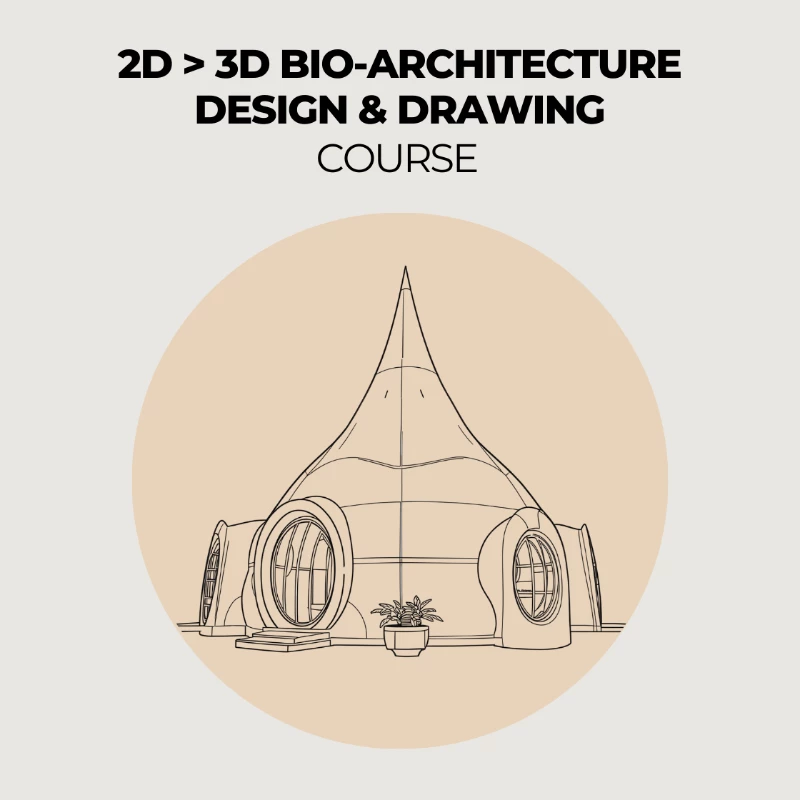
If you’d like guided, step‑by‑step practice turning hand sketches into colored Rhino concepts, explore Naturalistico’s dedicated program on drawing, Rhino 3D, and color workflows: Drawing Course – Rhino 3D and Color.